How to Use Digital Whiteboards: A Practical Guide for Schools and Businesses
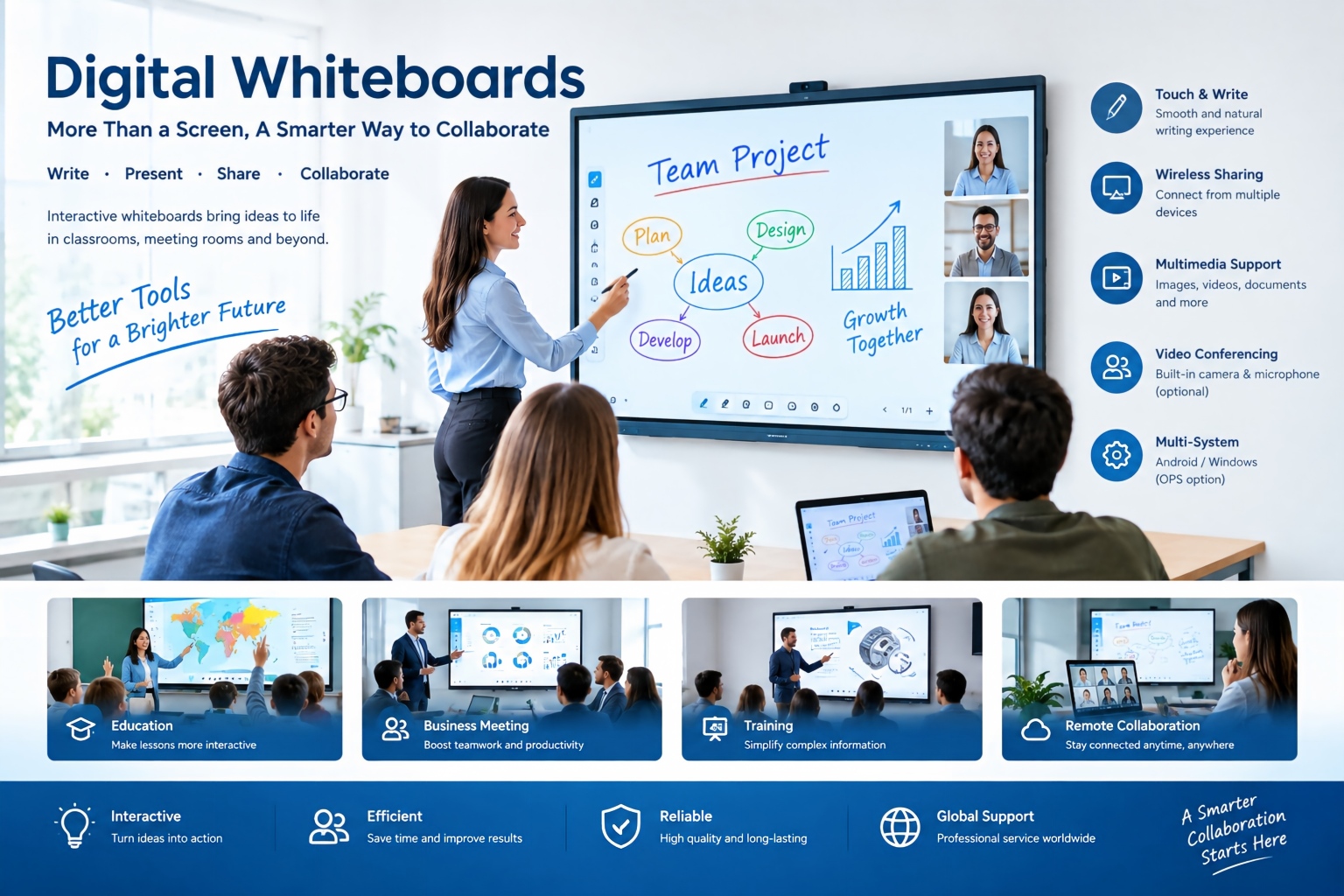
Digital whiteboards have become an important tool for modern classrooms, meeting rooms, training centers, and collaborative workspaces. Unlike traditional whiteboards, a digital whiteboard combines a large interactive touchscreen with software, multimedia content, wireless connectivity, and collaboration tools.
For schools, businesses, and organizations planning to purchase an interactive whiteboard, understanding how to use the technology effectively is just as important as choosing the right screen size and configuration.
What Is a Digital Whiteboard?
A digital whiteboard, also known as an interactive whiteboard or interactive display, is a large touchscreen designed for writing, presenting, teaching, and collaboration. Users can interact directly with content using their fingers or a stylus.
Modern interactive whiteboards typically support Android or Windows systems and may include features such as screen mirroring, annotation, video conferencing, built-in microphones, cameras, and wireless content sharing.
Step 1: Turn On and Prepare the Whiteboard
Start by powering on the digital whiteboard and checking that the touchscreen, speakers, network connection, and other connected devices are working properly.
If the display uses Android, users can access applications directly from the built-in system. If an OPS or external Windows computer is installed, the whiteboard can also operate as a Windows-based interactive workstation.
Before a lesson or meeting, prepare presentations, documents, videos, websites, or other materials in advance. This reduces interruptions and makes the session more efficient.
Step 2: Write and Annotate on the Screen
One of the main advantages of an interactive whiteboard is direct touchscreen writing.
Users can write with their fingers or a compatible stylus, select different pen colors and thicknesses, erase content, and highlight important information. Many systems also support multi-touch, allowing several users to write on the screen simultaneously.
During a presentation, users can annotate directly over documents, images, websites, or presentation slides. This makes explanations more visual and interactive.
Step 3: Share Screens Wirelessly
Wireless screen sharing allows teachers, presenters, and employees to display content from laptops, tablets, or smartphones on the interactive whiteboard.
For example, a teacher can share a student's work with the entire class, while a sales team can display a presentation from a laptop without connecting multiple cables.
This function is particularly useful for collaborative meetings and hybrid working environments.
Step 4: Use Multimedia for Teaching and Presentations
Digital whiteboards can display images, videos, websites, charts, documents, and presentations on a large high-resolution screen.
In education, teachers can combine handwriting with videos, diagrams, animations, and online resources. In business, presenters can switch between PowerPoint presentations, product demonstrations, spreadsheets, and websites during a meeting.
This creates a more dynamic experience than using a conventional whiteboard or projector alone.
Step 5: Collaborate in Real Time
Collaboration is another major application of digital whiteboards.
Multiple participants can brainstorm ideas, organize information, draw diagrams, review documents, and make notes together. Some systems allow users to save or share the completed whiteboard content after a meeting or lesson.
For businesses, this can help teams organize brainstorming sessions, project planning, training, and remote collaboration.
Step 6: Use Video Conferencing Features
Many advanced interactive displays support video conferencing through integrated or external cameras and microphones.
A meeting room can therefore combine presentation, annotation, screen sharing, and video communication on one large display.
For organizations with remote teams, this can make online meetings more visual and interactive.
How to Use a Digital Whiteboard Effectively
Simply installing an interactive whiteboard does not automatically improve teaching or meetings. Users should focus on practical workflows.
For education, teachers can prepare digital lesson materials before class, combine handwriting with multimedia content, and save important notes for students.
For business, teams can use the display for presentations, brainstorming, training, project reviews, and video conferences.
Organizations should also provide basic user training and establish simple procedures for connecting devices, updating software, and maintaining the display.
What Should Buyers Consider?
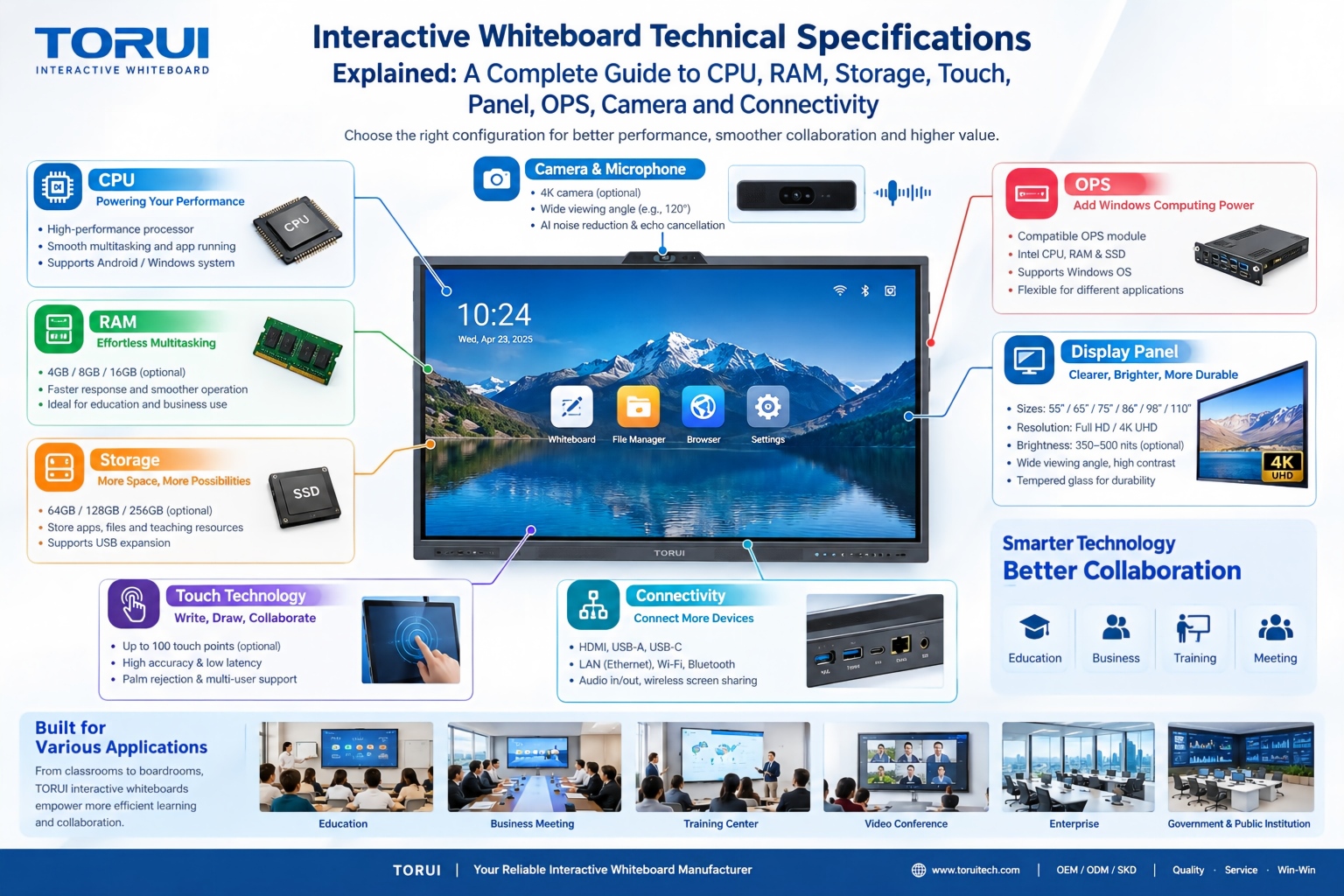
When purchasing a digital whiteboard, buyers should evaluate more than screen size. Important specifications include display resolution, brightness, touch accuracy, writing response, operating system, RAM and storage, connectivity, wireless screen sharing, camera and microphone options, and software compatibility.
For B2B buyers, warranty, certifications, OEM/ODM capability, production capacity, quality control, technical support, and after-sales service are also important considerations.
Conclusion
Knowing how to use a digital whiteboard effectively can help schools and businesses create more interactive, efficient, and collaborative environments. From digital writing and annotation to wireless screen sharing, multimedia presentations, and video conferencing, an interactive whiteboard can bring multiple functions together in one professional display.
For distributors, system integrators, schools, and corporate buyers, selecting a reliable interactive whiteboard manufacturer is an important step toward building a long-term solution. The right combination of hardware, software, usability, quality control, and after-sales support can make a digital whiteboard a valuable investment for modern education and business collaboration.
How to Choose an Interactive Whiteboard for Schools, Meeting Rooms and Business Use
Android 14 8GB+128GB vs Android 16 16GB+256GB: Which Interactive Whiteboard Is Better?
Related Article