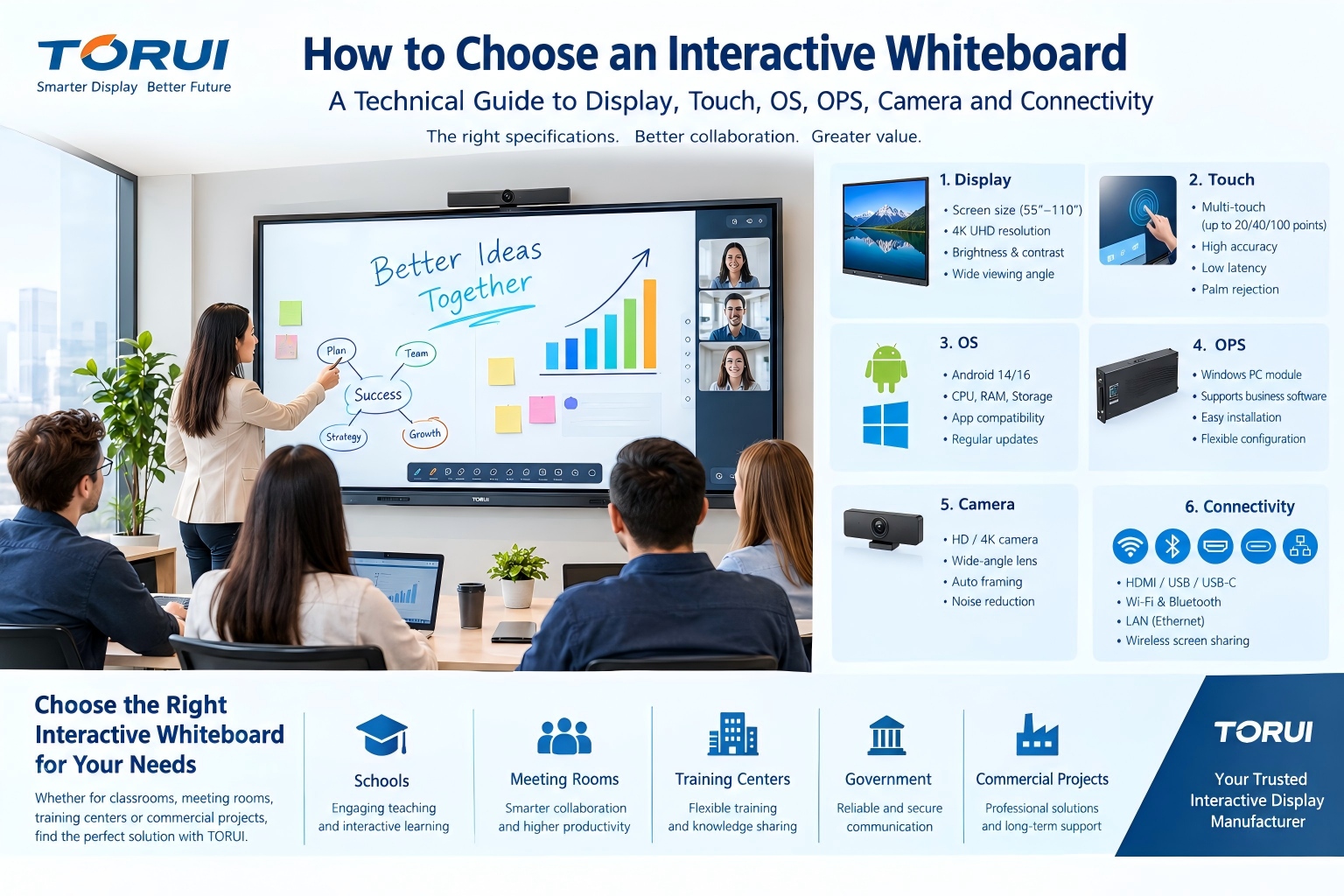
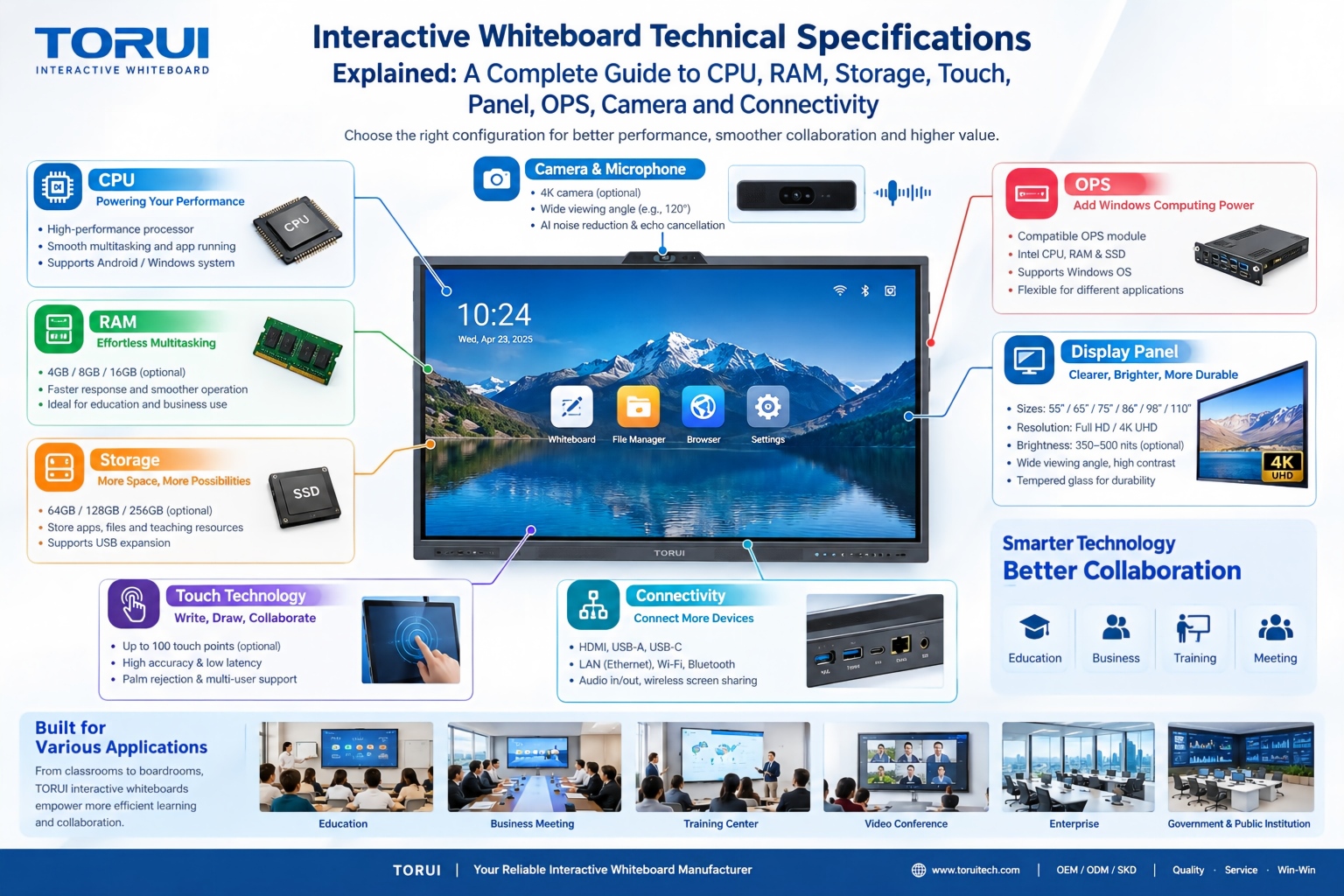
Interactive Whiteboard Technical Specifications Explained: A Complete Guide to CPU, RAM, Storage, Touch, Panel, OPS, Camera and Connectivity
Choosing an interactive whiteboard involves more than comparing screen sizes and prices. For schools, businesses, distributors, wholesalers, and system integrators, understanding the technical specifications is essential to selecting a reliable product that meets different application requirements.
Key specifications include CPU performance, RAM, internal storage, touch technology, display panel quality, OPS compatibility, camera systems, and connectivity options. Each component affects usability, performance, compatibility, and long-term value.
This guide explains the most important interactive whiteboard specifications and helps B2B buyers make informed purchasing decisions.
1. CPU: The Foundation of System Performance
The CPU, or central processing unit, executes instructions and manages many of the operations performed by an interactive whiteboard's operating system and applications.
A more capable processor can improve application responsiveness, multitasking, digital annotation, and overall system performance. However, CPU performance also depends on processor architecture, software optimization, memory, and thermal design.
When comparing interactive whiteboards, buyers should check the exact processor model, core configuration, operating system compatibility, and intended workload.
For example, basic classroom presentations may require less processing power than advanced collaboration, demanding educational applications, or complex multitasking. Selecting a suitable processor helps balance performance and purchasing costs.
2. RAM: Supporting Smooth Multitasking
RAM, or random access memory, temporarily stores the data used by running applications. Sufficient RAM helps an interactive whiteboard switch between applications and handle multiple tasks smoothly.
Common configurations include 4GB, 8GB, and 16GB, although availability varies by product and platform.
- 4GB RAM: May suit basic presentations and lightweight applications, depending on the operating system.
- 8GB RAM: A practical option for many classroom and meeting-room applications.
- 16GB RAM: Offers additional memory capacity for heavier multitasking and more demanding software.
RAM requirements depend on the operating system, background processes, and applications being used. More RAM does not automatically guarantee better performance if other hardware components become bottlenecks.
For commercial projects, buyers should evaluate RAM alongside the CPU and operating system rather than comparing memory capacity alone.
3. Internal Storage: Space for Applications and Files
Internal storage holds the operating system, installed applications, downloaded resources, and locally saved files.
Common configurations include 64GB, 128GB, and 256GB. Actual usable capacity is lower because the operating system and preinstalled software occupy part of the storage.
A 64GB configuration may be sufficient for basic use with cloud storage or external drives. A 128GB or 256GB configuration can provide more flexibility for organizations that install additional applications or store teaching materials, videos, and meeting documents locally.
Buyers should also check storage expansion options, USB support, file compatibility, and whether the device supports the required enterprise applications.
For distributors, offering several memory and storage configurations can help address different customer budgets and application requirements.
4. Touch Technology: Accuracy and Collaboration
Touch performance is one of the most important characteristics of an interactive whiteboard. It determines how naturally users write, draw, select objects, and collaborate directly on the screen.
When evaluating touch specifications, consider the following factors:
Touch points: Multi-touch technology allows several users to interact with the screen simultaneously. Some products support up to 20, 40, or 100 touch points, depending on the model and operating system. Buyers should verify supported touch points in their intended software environment.
Writing accuracy: Accurate touch tracking helps digital handwriting and drawing feel natural. The physical gap between the glass and display, calibration, and software processing can all affect the experience.
Response speed: Low touch latency makes writing and annotation feel more immediate. Manufacturers should provide reliable test information rather than relying exclusively on marketing claims.
Palm rejection and writing tools: These features can improve handwriting and annotation, especially during lessons and collaborative meetings.
For education projects, multi-user interaction and handwriting performance deserve particular attention. For business environments, reliable touch control and annotation tools can improve meeting efficiency.
5. Display Panel: Resolution, Brightness and Durability
The display panel determines how clearly users can see text, diagrams, images, and videos.
Screen size: Common interactive whiteboard sizes include 55, 65, 75, 86, 98, and 110 inches. The ideal size depends on room dimensions, viewing distance, audience size, and installation conditions.
Resolution: Full HD and 4K UHD are common display categories. A 4K UHD panel typically provides 3840 × 2160 pixels, offering more detail for spreadsheets, technical drawings, fine text, and high-resolution content.
Brightness: Brightness, measured in nits or cd/m², affects visibility under different lighting conditions. Buyers should compare specified brightness levels and consider reflections from windows and overhead lighting.
Contrast and viewing angles: These specifications influence image clarity and readability for people sitting away from the center of the screen.
Protective glass: Tempered or otherwise strengthened protective glass can help withstand everyday contact. Buyers should verify the actual glass construction, surface treatment, hardness claims, and applicable safety testing.
A high-quality panel should combine appropriate resolution, clear visibility, durable construction, and consistent performance for its intended environment.
6. OPS: Expanding Windows Computing Capabilities
OPS stands for Open Pluggable Specification. An OPS-compatible interactive whiteboard can accommodate a compatible computing module, commonly used to provide a Windows-based computing environment.
This arrangement allows users to run Windows applications alongside the whiteboard's built-in operating system, depending on the product configuration.
When evaluating OPS, buyers should check:
- Physical and electrical compatibility between the display and OPS module.
- CPU, RAM, storage, and graphics specifications of the module.
- Supported Windows version and licensing arrangements.
- Driver compatibility, network connectivity, and software requirements.
- Whether the OPS module is included in the quoted price.
An OPS module is not automatically included with every interactive whiteboard. Confirming the configuration before ordering helps prevent unexpected costs and compatibility problems.
For schools and enterprises that depend on Windows-specific applications, OPS can provide a flexible computing solution.
7. Camera and Microphone: Supporting Hybrid Meetings
Integrated cameras and microphones can turn an interactive whiteboard into a collaboration hub for video conferencing, remote teaching, and hybrid meetings.
Camera specifications may include resolution, field of view, autofocus, low-light performance, and digital or optical processing capabilities. A higher resolution alone does not guarantee better video quality.
Microphone specifications should be assessed alongside pickup range, noise reduction, echo cancellation, and room acoustics. Speaker quality also affects the overall conferencing experience.
Before purchasing, buyers should verify compatibility with their preferred video-conferencing software, privacy controls, USB or network interfaces, and whether the camera and microphone are built in or supplied as optional accessories.
For meeting rooms, the correct camera field of view and audio pickup performance may be more important than headline resolution alone.
8. Connectivity: Ensuring Device Compatibility
Connectivity determines how easily users can connect laptops, document cameras, external storage, networks, and other classroom or meeting-room equipment.
Important interfaces include:
- HDMI: Connects external computers and other video sources.
- USB-A: Supports peripherals, storage devices, and compatible touch-related functions.
- USB-C: May support video, data, touch, or charging, depending on the port implementation.
- LAN (Ethernet): Provides wired network connectivity.
- Wi-Fi: Enables wireless networking and, on supported systems, screen sharing.
- Bluetooth: Connects compatible wireless peripherals.
- Audio interfaces: Support external microphones, speakers, or other audio equipment.
- Wireless screen mirroring: Allows compatible devices to share content without a direct video cable.
Buyers should check the number and location of ports, supported protocols, bandwidth limitations, and operating-system compatibility. A USB-C connector, for example, does not necessarily support every USB-C function.
For large-scale deployments, reliable network management, firmware updates, security controls, and compatibility with existing IT infrastructure are also important.
9. How to Choose the Right Interactive Whiteboard Configuration
There is no single specification combination that suits every project. The best configuration depends on application requirements, total budget, software compatibility, and expected service life.
For schools, prioritize touch accuracy, handwriting performance, suitable screen size, classroom software compatibility, and durability.
For corporate meeting rooms, focus on 4K display quality, wireless screen sharing, conferencing capabilities, network security, and Windows or OPS compatibility where required.
For distributors and wholesalers, evaluate product consistency, available configurations, OEM/ODM support, quality control, warranty terms, spare parts, and technical assistance.
For system integrators, confirm interface requirements, mounting conditions, operating-system compatibility, network policies, and integration with existing equipment.
A useful purchasing principle is to compare the complete configuration rather than one specification in isolation. For example, 16GB RAM may be valuable for demanding applications, but it cannot compensate for an unsuitable CPU, incompatible software, or poor touch performance.
10. Frequently Asked Questions About Interactive Whiteboard Specifications
Q1: How much RAM is recommended for an interactive whiteboard?
For many general classroom and meeting-room applications, 8GB RAM can be a practical starting point. More demanding applications may benefit from 16GB, depending on the operating system and workload.
Q2: Is 4K necessary for an interactive whiteboard?
4K UHD is particularly useful for detailed text, spreadsheets, technical drawings, and large displays. The best resolution depends on screen size, viewing distance, content, and budget.
Q3: What is the difference between an Android interactive whiteboard and an OPS-based Windows solution?
Android provides a built-in operating environment, while a compatible OPS module can add Windows computing capabilities. Some products support both, allowing users to select the appropriate environment for different applications.
Q4: Does a higher number of touch points always mean better touch performance?
No. Touch accuracy, latency, palm rejection, calibration, and software compatibility also matter. Buyers should evaluate the complete touch experience.
Q5: What should distributors check before placing a bulk order?
Distributors should verify the full hardware configuration, product consistency, certifications for the target market, packaging, warranty, spare parts availability, OEM/ODM options, and after-sales support.
Conclusion
Understanding interactive whiteboard technical specifications helps buyers select products that meet real-world requirements rather than paying for features they may not need.
CPU, RAM, and storage affect computing performance. Touch technology determines writing and collaboration quality. The display panel influences visibility and durability. OPS expands computing flexibility, while cameras, microphones, and connectivity support modern hybrid learning and business communication.
For distributors, wholesalers, schools, and system integrators, the most effective purchasing decision balances performance, compatibility, reliability, service, and total cost of ownership.
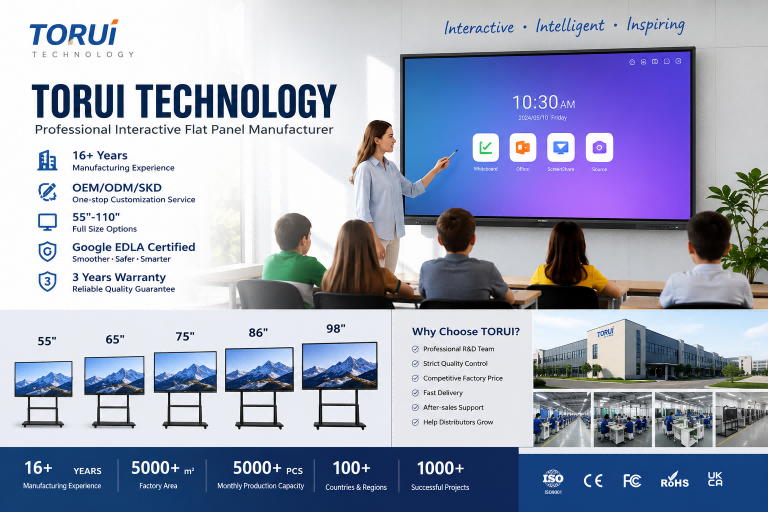
TORUI Technology provides interactive whiteboard solutions for education and business applications, with OEM/ODM options for B2B customers. Buyers can discuss screen sizes, hardware configurations, operating systems, connectivity, and project requirements with the TORUI team to identify a suitable solution for their markets.
Contact TORUI to discuss interactive whiteboard specifications, OEM/ODM customization, and wholesale project requirements.
How to Choose an Interactive Whiteboard: A Technical Guide to Display, Touch, OS, OPS, Camera and Connectivity
Related Article