
How to Clean an Interactive Whiteboard: A Professional Maintenance Guide
author: toruitech
2026-03-17

Interactive whiteboards (also known as smart boards or interactive displays) are essential tools in modern classrooms and business environments. Proper cleaning and maintenance not only ensure a clear display and smooth touch performance but also extend the lifespan of the device. This guide provides a reliable, step-by-step approach to cleaning your interactive whiteboard safely and effectively.
Why Proper Cleaning Is Important
Unlike traditional whiteboards, interactive whiteboards combine display panels, touch sensors, and protective glass surfaces. Improper cleaning can lead to:
-
Reduced touch sensitivity
-
Screen damage or scratches
-
Permanent stains or streaks
-
Shortened product lifespan
Regular and correct maintenance helps preserve both visual quality and functionality.
Before You Start: Safety First
Before cleaning your interactive whiteboard, always:
-
Power Off the Device
Turn off and unplug the board to prevent electrical issues and accidental input. -
Allow the Screen to Cool Down
Cleaning a hot screen may cause streaks or damage sensitive components. -
Use Proper Tools Only
Avoid using rough materials or harsh chemicals.
Recommended Cleaning Tools
For best results, prepare the following:
-
Microfiber cloth (soft and lint-free)
-
Screen-safe cleaning solution (non-alcohol or low-alcohol)
-
Distilled water (if needed)
Daily Cleaning Steps
For routine maintenance, follow these simple steps:
-
Dry Wipe First
Use a microfiber cloth to gently remove dust, fingerprints, and light smudges. -
Spot Clean if Necessary
Lightly dampen the cloth with a screen-safe cleaner. Never spray liquid directly onto the screen. -
Wipe Gently
Clean the surface using soft, circular motions without applying pressure. -
Dry the Surface
Use a dry part of the cloth to remove any remaining moisture.
Deep Cleaning for Heavy Use
In high-usage environments like schools or conference rooms, deeper cleaning may be required:
-
Use a specialized interactive display cleaner
-
Focus on areas with frequent touch (center and edges)
-
Clean the frame and sensors carefully to avoid dust buildup
Repeat weekly or as needed, depending on usage frequency.
What to Avoid
To prevent damage, never use:
-
Abrasive cloths, tissues, or paper towels
-
Strong chemicals such as ammonia, acetone, or glass cleaner
-
Excessive liquid that may seep into edges
-
Spraying directly onto the screen
These can damage the anti-glare coating and touch sensors.
Maintenance Tips for Longevity
-
Clean the board regularly to prevent buildup
-
Encourage users to avoid touching the screen with dirty or greasy hands
-
Use stylus pens when possible to reduce fingerprints
-
Keep the environment dust-free
Common Mistakes to Avoid
-
Cleaning while the device is on
-
Using household glass cleaners
-
Pressing too hard on the screen
-
Ignoring edges and corners where dirt accumulates
Conclusion
Cleaning an interactive whiteboard requires more care than a traditional board due to its sensitive components. By following proper cleaning techniques and using the right materials, you can maintain excellent display clarity, ensure accurate touch response, and significantly extend the life of your device. Regular maintenance not only protects your investment but also enhances user experience in both educational and professional settings.
Interactive Teaching Program: Transforming Modern Education
Interactive Display: Transforming Modern Education and Business Collaboration
Related Article

Choosing the right interactive whiteboard size is an important decision for distributors, wholesalers, and education technology suppliers. The 65-inch, 75-inch, and 86-inch interactive whiteboards are popular options for classrooms, meeting rooms, training centers, and commercial projects.
65 vs 75 vs 86-Inch Interactive Whiteboard: Which Model Should Distributors Choose?

Choosing the right interactive whiteboard manufacturer in China is an important decision for distributors, wholesalers, education technology suppliers, and system integrators. The right manufacturing partner can help businesses improve product quality, maintain competitive pricing, customize products for local markets, and build a sustainable distribution business.
Who Are the Best Interactive Whiteboard Manufacturers in China for B2B Distributors and Wholesalers?
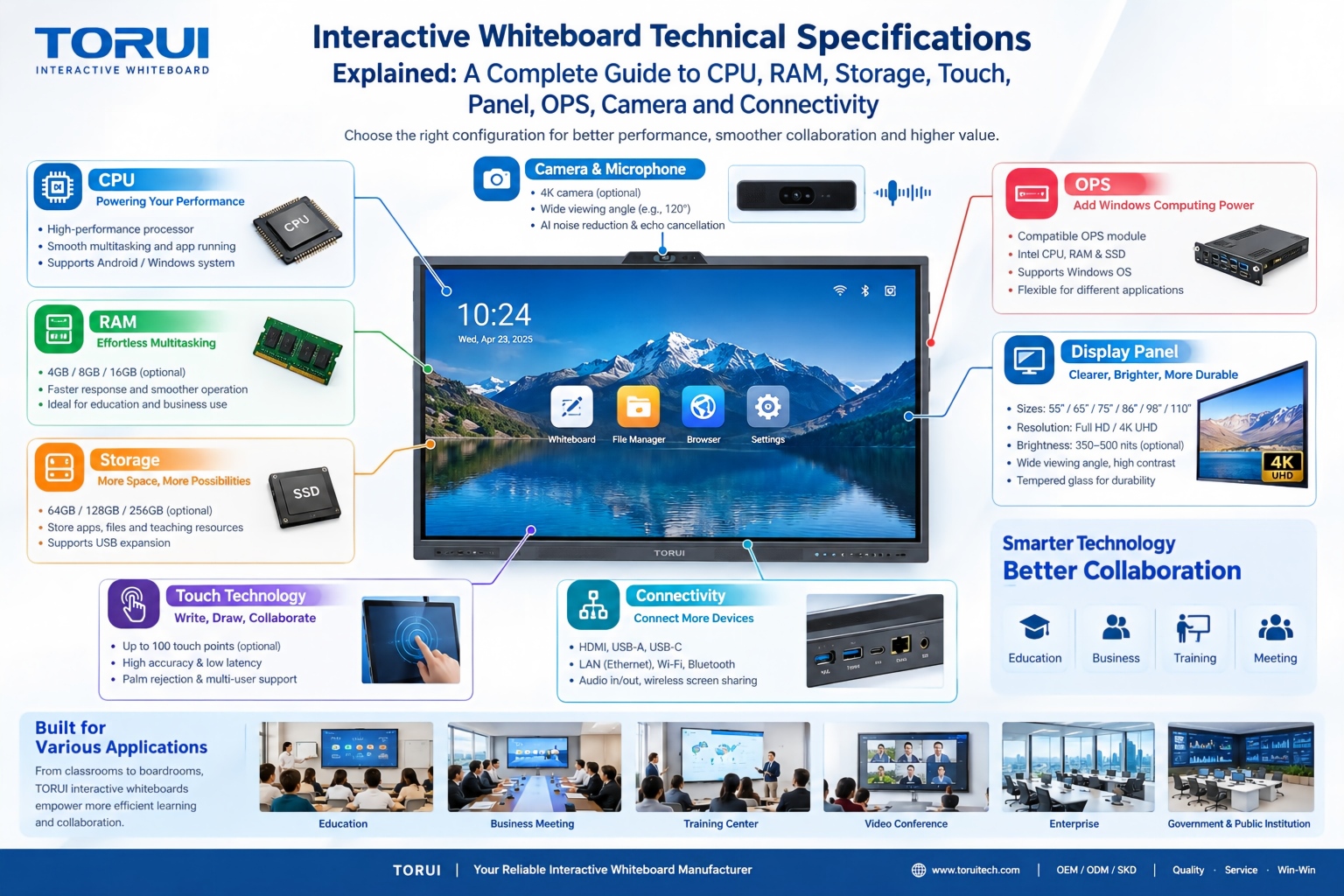
Choosing an interactive whiteboard involves more than comparing screen sizes and prices. For schools, businesses, distributors, wholesalers, and system integrators, understanding the technical specifications is essential to selecting a reliable product that meets different application requirements.
Interactive Whiteboard Technical Specifications Explained: A Complete Guide to CPU, RAM, Storage, Touch, Panel, OPS, Camera and Connectivity
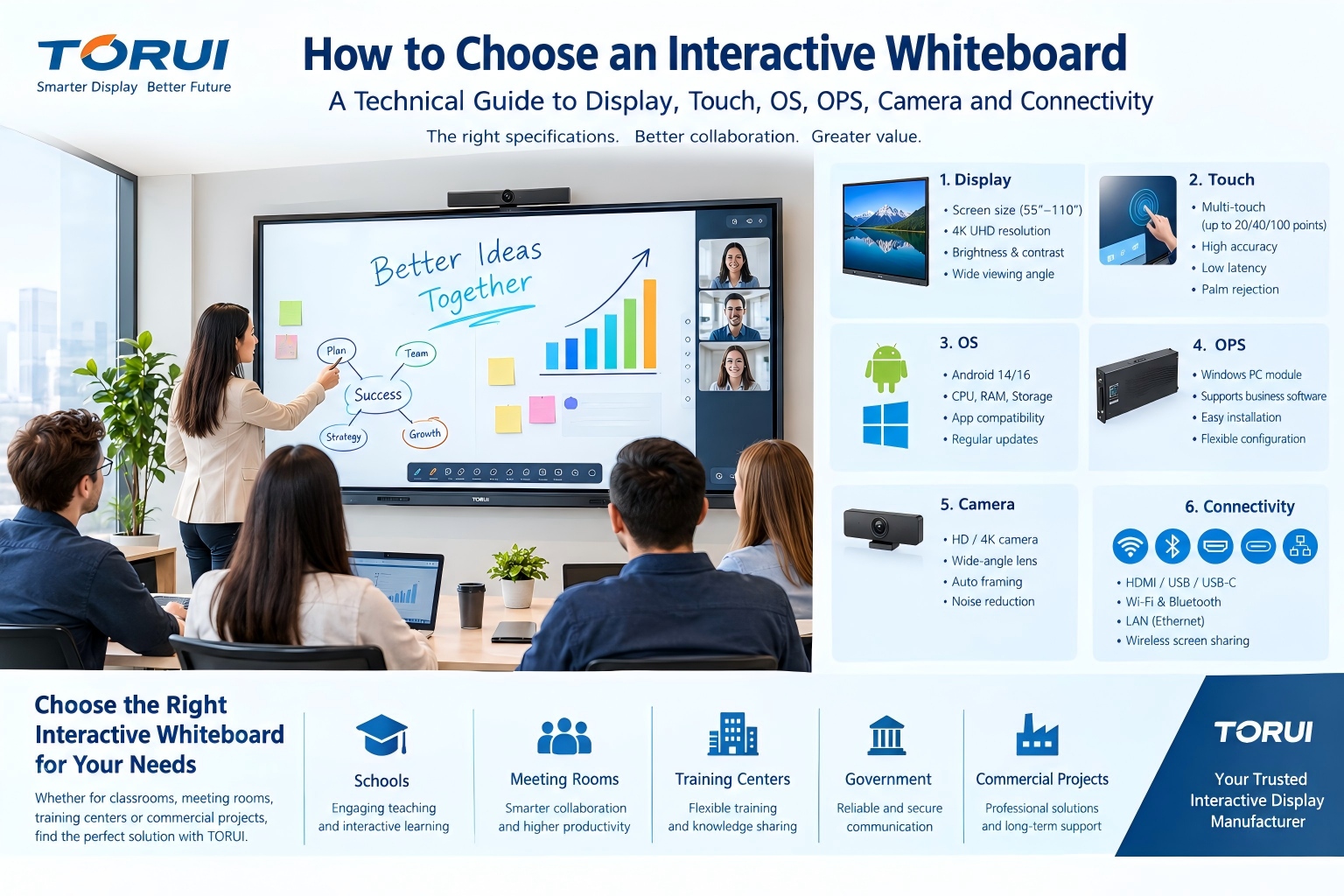
Choosing an interactive whiteboard for a school, meeting room, training center, government organization or commercial project requires more than comparing screen size and price. The most important specifications include display resolution, brightness, touch technology, operating system, processor, memory, storage, OPS compatibility, camera and microphone performance, connectivity, durability and after-sales support.
How to Choose an Interactive Whiteboard: A Technical Guide to Display, Touch, OS, OPS, Camera and Connectivity