
Interactive Whiteboard Maintenance and Repair
author: toruitech
2025-08-10

With the widespread adoption of information-based teaching and smart office work, interactive whiteboards have become an indispensable feature of modern classrooms and conference rooms. They integrate the functions of traditional blackboards, computers, and projectors, significantly improving teaching and collaboration efficiency. However, as high-tech electronic products, interactive whiteboards are prone to malfunctions over time if not properly maintained and repaired. Therefore, effective maintenance and repair measures are crucial to extending the lifespan of the device and ensuring a superior user experience.
I. Daily Care of Interactive Whiteboards
Using Writing Tools Correctly
Interactive whiteboard surfaces are typically made of high-quality, wear-resistant materials. However, strictly follow the manufacturer's recommendations and use only designated electronic pens or whiteboard markers. Never use oil-based markers, regular markers, or other non-designed tools to write on the board. If oil-based markers are used, immediately wipe them gently with a cotton swab dipped in alcohol to prevent long-term residue and affect the display quality.
Preventing Physical Damage and Electronic Interference
During daily operation, avoid contacting or bumping the whiteboard surface with sharp objects (such as knives and keys) to prevent scratches or damage. Additionally, keep the interactive whiteboard away from magnetic objects and sources of strong electromagnetic interference, such as magnets and radio equipment. These objects can cause abnormal whiteboard signals or a buzzing sound, disrupting normal operation.
Regular Cleaning and Maintenance
Keeping the whiteboard surface clean is crucial for maintaining display quality and touch sensitivity. We recommend cleaning the whiteboard surface at least once a week, depending on frequency of use. When cleaning, always exit the whiteboard system and turn off the projector to observe stains and streaks. Gently wipe the surface with a clean, soft, damp cloth (wrung out thoroughly to prevent water from seeping into the board). Avoid using a dry cloth directly to avoid static electricity. For stubborn stains, use non-abrasive denatured alcohol, glass cleaner, or a dedicated whiteboard cleaner.
Frame and Interface Maintenance
The frame is a critical area for signal acquisition and is prone to dust accumulation. We recommend cleaning the frame daily with a dry cloth to prevent static electricity from interfering with signal acquisition. Check and maintain the USB port and data cable connections securely to prevent touch failure or signal interruption due to looseness.
Common Faults and Repair Methods
Touch Unresponsiveness
If you experience touch failure, first check the USB port to see if it's loose. Re-seating the cable or restarting the computer usually resolves the issue. If the problem persists, try cleaning the frame, verifying the driver installation, or contacting a professional technician for further testing.
Display Abnormalities or Board Damage
If problems such as unclear display, indelible text, or board scratches occur, clean the board and inspect for foreign objects or physical damage. For severe scratches or damage, contact the manufacturer or a professional repair service to replace the board components.
Software Faults
Interactive whiteboard software systems may sometimes malfunction due to compatibility or operational errors. In this case, try reinstalling the whiteboard driver and application to ensure the operating system is genuine and meets manufacturer requirements. For complex software issues, it is recommended that a professional technician handle the issue remotely or on-site.
III. Maintenance and Repair Considerations
Regular Training and Standardized Operations
It is recommended that faculty, staff, and users regularly participate in equipment usage and maintenance training to familiarize themselves with the correct operation procedures and daily maintenance methods for interactive whiteboards, thereby reducing equipment damage caused by misuse.
Establish a Maintenance File
Create a usage and maintenance file for each whiteboard, recording maintenance, repairs, and troubleshooting information for easy follow-up and management.
Choose Professional Repair Services
If you encounter hardware or software issues that cannot be resolved on your own, contact the manufacturer or an authorized service provider immediately for professional repair to avoid further damage caused by DIY disassembly.
Conclusion
As intelligent tools for modern teaching and office work, interactive whiteboards require effective daily maintenance and timely, effective repairs to maintain optimal operation. Standardized operation, regular cleaning, and prompt troubleshooting not only extend the lifespan of the equipment but also ensure efficient and smooth teaching and meetings. Users should prioritize interactive whiteboard maintenance and develop good usage habits, allowing technology to empower smart education and efficient office work.
Interactive Whiteboard Wall-Mounting Installation Methods and Precautions
Digital Blackboards: A New Force for Educational Transformation
Related Article

Choosing the right interactive whiteboard size is an important decision for distributors, wholesalers, and education technology suppliers. The 65-inch, 75-inch, and 86-inch interactive whiteboards are popular options for classrooms, meeting rooms, training centers, and commercial projects.
65 vs 75 vs 86-Inch Interactive Whiteboard: Which Model Should Distributors Choose?

Choosing the right interactive whiteboard manufacturer in China is an important decision for distributors, wholesalers, education technology suppliers, and system integrators. The right manufacturing partner can help businesses improve product quality, maintain competitive pricing, customize products for local markets, and build a sustainable distribution business.
Who Are the Best Interactive Whiteboard Manufacturers in China for B2B Distributors and Wholesalers?
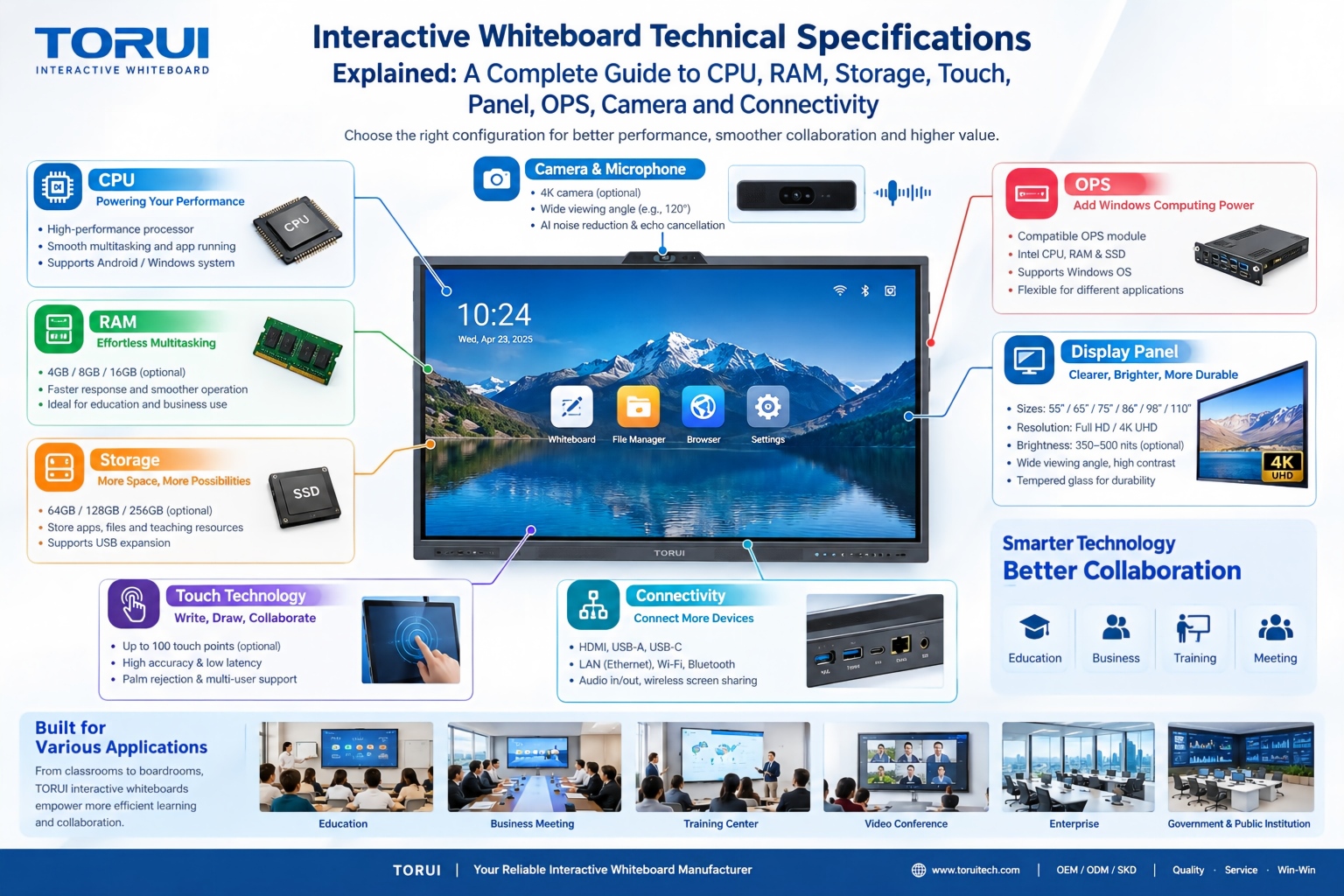
Choosing an interactive whiteboard involves more than comparing screen sizes and prices. For schools, businesses, distributors, wholesalers, and system integrators, understanding the technical specifications is essential to selecting a reliable product that meets different application requirements.
Interactive Whiteboard Technical Specifications Explained: A Complete Guide to CPU, RAM, Storage, Touch, Panel, OPS, Camera and Connectivity

Choosing an interactive whiteboard for a school, meeting room, training center, government organization or commercial project requires more than comparing screen size and price. The most important specifications include display resolution, brightness, touch technology, operating system, processor, memory, storage, OPS compatibility, camera and microphone performance, connectivity, durability and after-sales support.
How to Choose an Interactive Whiteboard: A Technical Guide to Display, Touch, OS, OPS, Camera and Connectivity