What Is an OPS Computer? A Complete Guide for Smart Displays and Interactive Whiteboards

Introduction
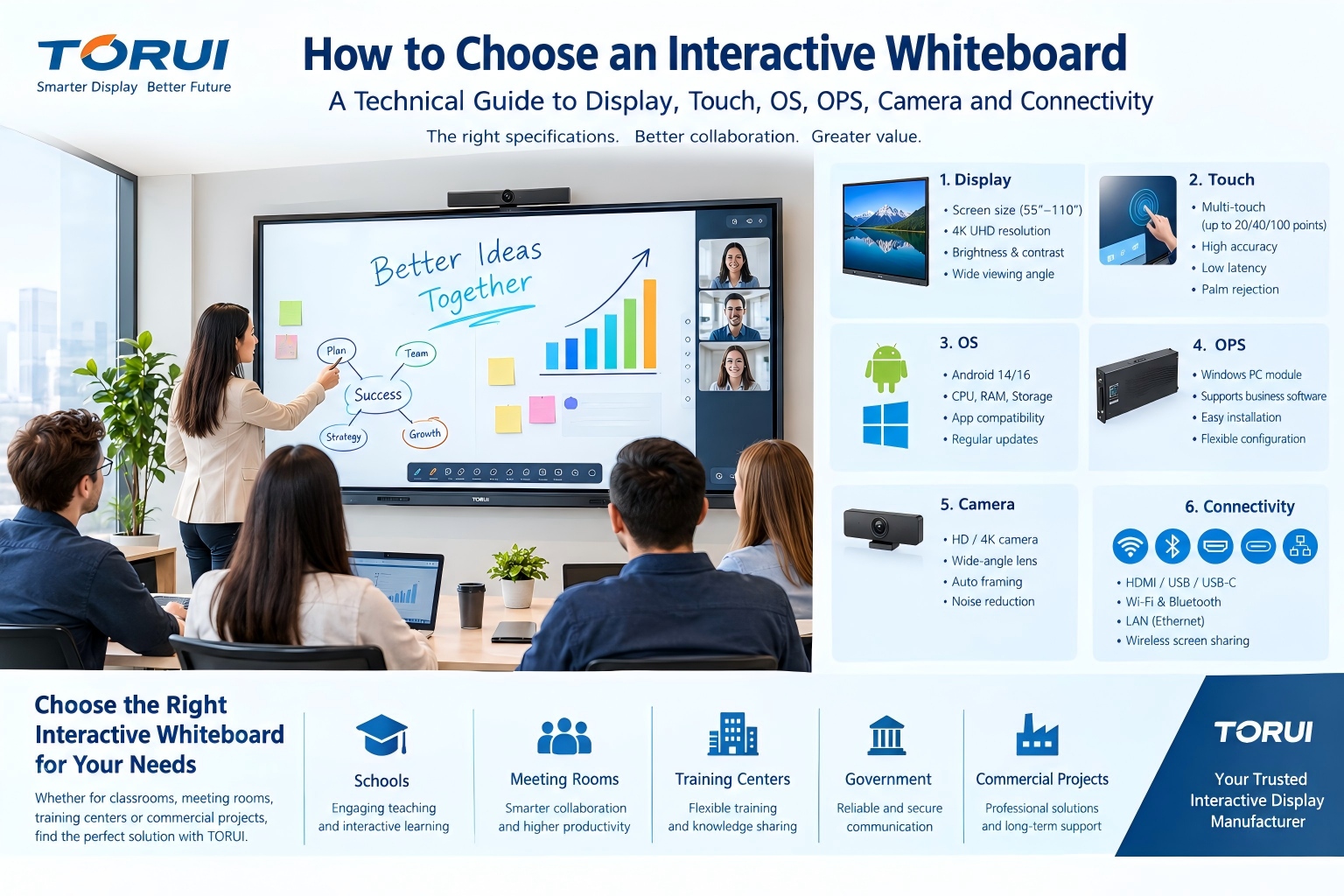
As digital learning and corporate collaboration evolve, OPS computers have become essential components for modern interactive flat panels (IFPs) and smart displays. Designed under Intel’s Open Pluggable Specification, the OPS computer simplifies installation, enhances system performance, and provides a reliable solution for classrooms and conference rooms alike.
What Is an OPS Computer?
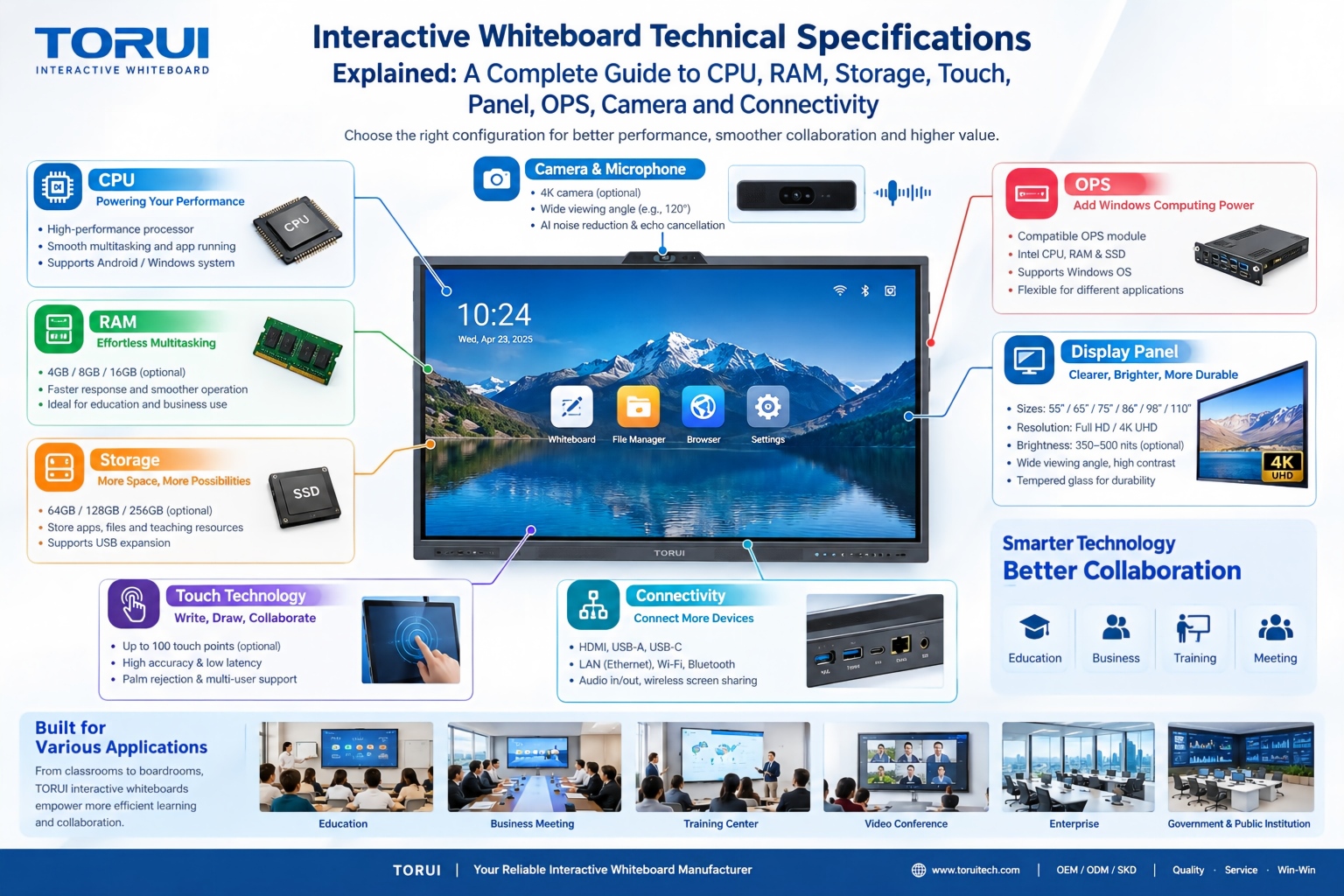
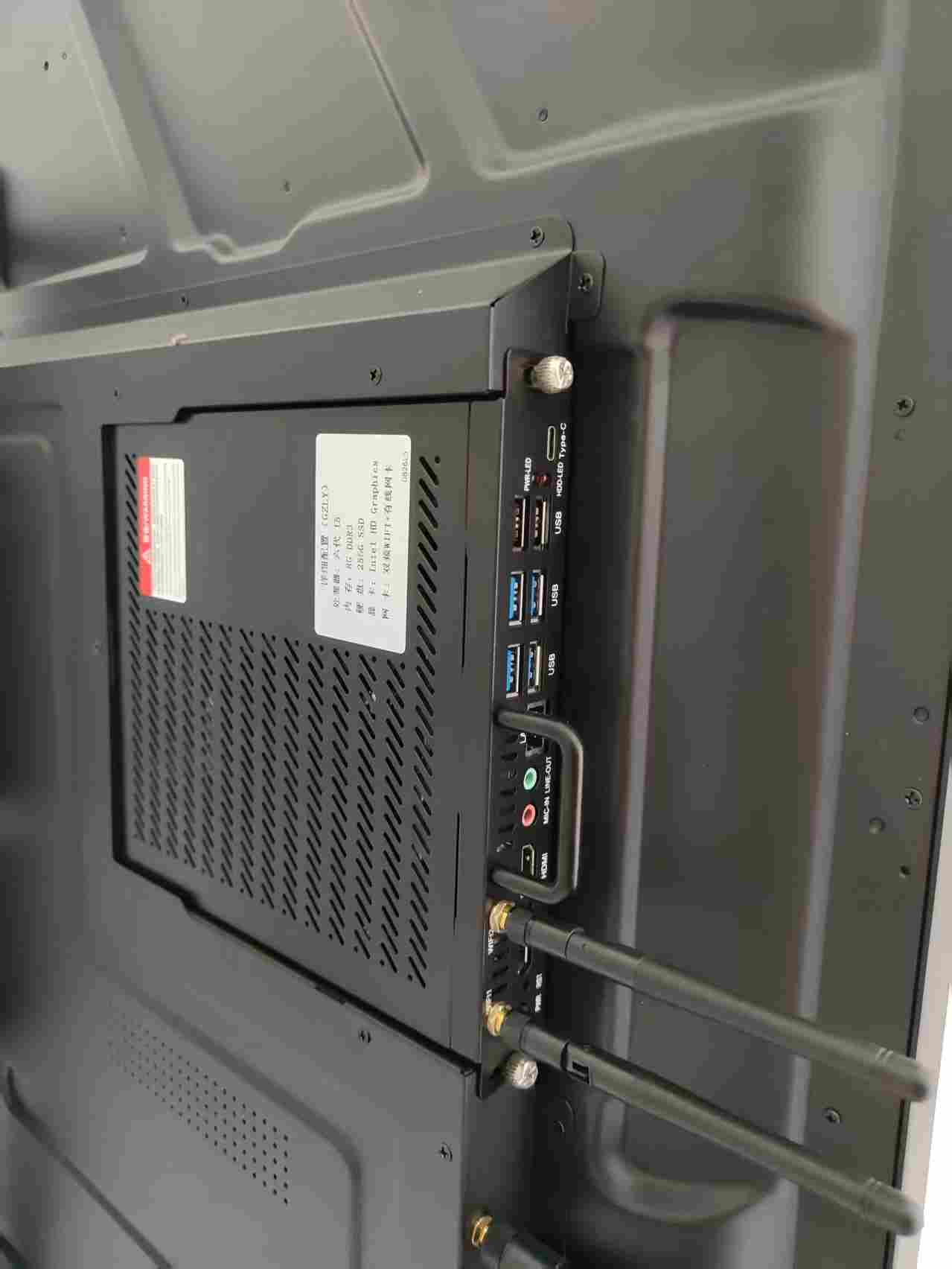
An OPS computer is a standardized pluggable PC module that integrates directly into an interactive display or whiteboard. It includes a CPU, RAM, SSD storage, GPU, and wireless connectivity, functioning as a built-in computer inside the display.
By following Intel’s Open Pluggable Specification, the OPS ensures hardware compatibility and reduces the complexity of wiring.
Key components of an OPS PC include:
-
Intel Core processor (i3/i5/i7 or higher)
-
8–32GB RAM memory
-
128GB–1TB SSD storage
-
Wi-Fi and Bluetooth modules
-
Windows or Android OS
Advantages of Using an OPS Computer
1. Seamless Integration
OPS modules connect directly to the display’s OPS slot, providing a clean, cable-free setup that enhances both aesthetics and convenience.
2. Easy Maintenance and Upgrade
The plug-and-play design allows users to replace or upgrade the OPS unit easily without dismantling the display.
3. High Performance
Equipped with advanced processors and SSD drives, OPS PCs handle multitasking, 4K video playback, and interactive teaching applications effortlessly.
4. Multi-System Compatibility
Supports Windows, Android, or dual-OS configurations—ideal for both educational and corporate applications.
5. Energy Efficiency
OPS modules consume less power while maintaining stable performance, reducing overall energy costs.
Applications of OPS Computers
Education and Smart Classrooms
Teachers can access online resources, annotate lessons, and manage interactive content directly through the OPS computer.
Corporate Meetings
Enterprises use OPS PCs for Zoom, Teams, and Google Meet conferences, ensuring high-quality collaboration and presentation experiences.
Digital Signage and Public Displays
OPS computers control multimedia advertising content in retail stores, airports, and exhibitions.
Key Specifications to Consider
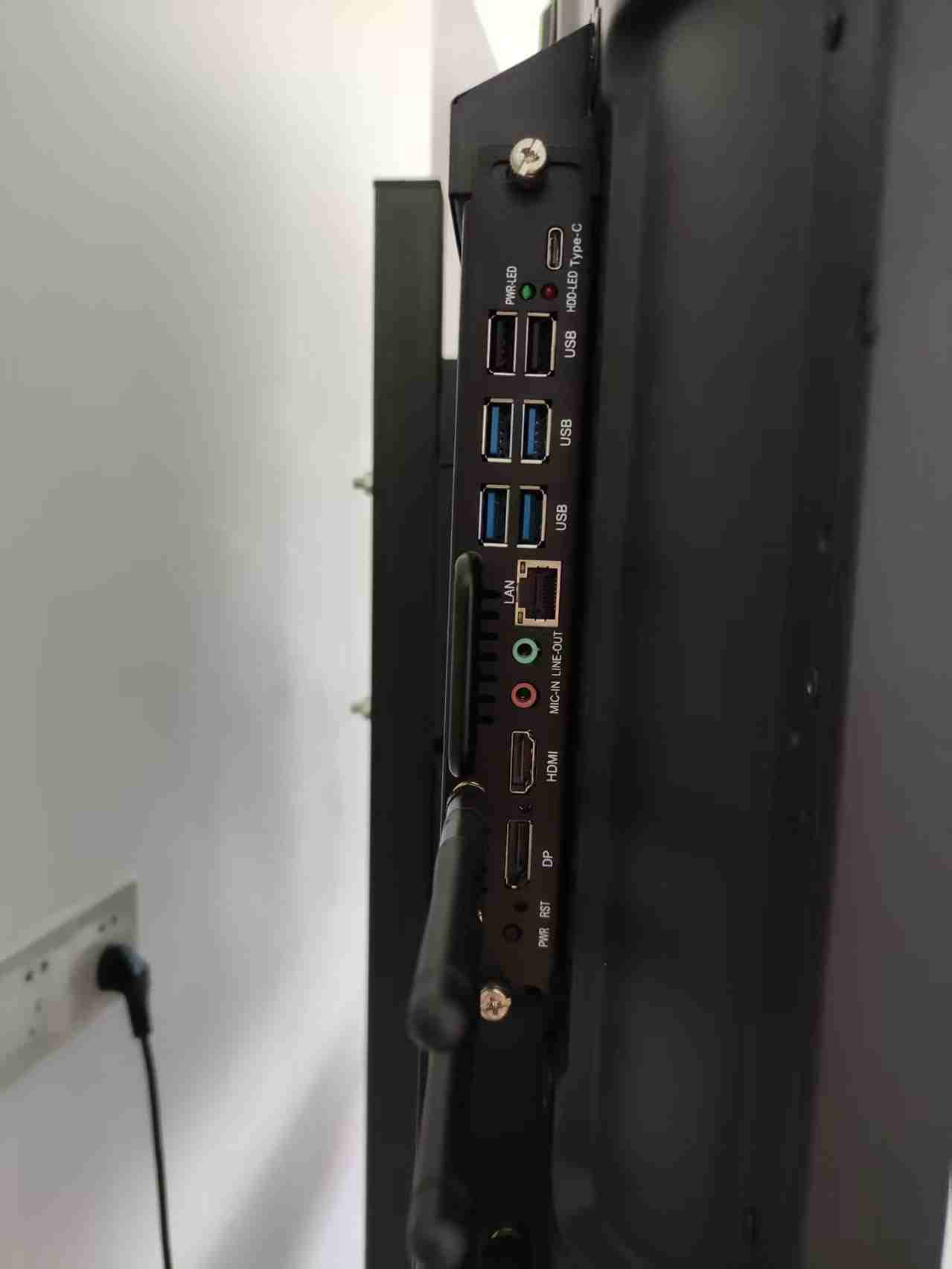
| Feature | Recommended Specs |
|---|---|
| CPU | Intel Core i5/i7 (11th or 12th Gen) |
| RAM | Minimum 8GB, ideal 16GB+ |
| Storage | SSD 256GB–1TB |
| GPU | Intel UHD or NVIDIA GPU |
| Connectivity | Wi-Fi 6, Bluetooth 5.0, HDMI, USB 3.0 |
| OS | Windows 10/11, Android 13, or Linux |
| Display Output | 4K UHD |
| Cooling | Advanced heat dissipation system |
How to Install an OPS Computer
-
Power off the interactive display.
-
Locate the OPS slot on the side or back panel.
-
Gently insert the OPS computer into the slot until it clicks securely.
-
Power on the display—the OPS PC boots automatically.
-
Configure your preferred OS, Wi-Fi, and applications.
⚙️ Installation usually takes less than 5 minutes and requires no technical expertise.
How to Choose the Right OPS Computer
-
For Education: Choose Intel i5 models with Windows OS for classroom management and teaching tools.
-
For Corporate Use: Opt for i7 or i9 CPUs for video conferencing and multitasking.
-
For Digital Signage: Select Android-based OPS for simplified content control.
-
For Future Scalability: Ensure RAM and SSD are upgradeable.
Choose reliable suppliers that provide CE, FCC, and RoHS certifications and global technical support.
Conclusion
An OPS computer transforms any compatible interactive display into a powerful, all-in-one intelligent system. Its compact size, robust performance, and modular design make it the preferred solution for smart classrooms, meeting rooms, and digital signage networks.
By choosing the right OPS module, you ensure your organization benefits from efficiency, flexibility, and long-term performance stability.
How to Import Interactive Whiteboards from China: A Complete Guide
How to Install and Calibrate an Interactive Whiteboard
Related Article