
How to Use a Smart Board Interactive Whiteboard: A Step-by-Step Guide
author: toruitech
2025-06-16

As a modern education and business communication tool, smart whiteboards (Smart Board interactive whiteboards) have gradually become the core equipment for classroom teaching and conference presentations. Knowing how to use smart whiteboards correctly can significantly improve efficiency and enhance interactive effects. In this guide, we will detail the basic steps and some practical tips for using smart whiteboards.
1. Set up and prepare smart whiteboards
First, make sure the whiteboard is properly connected to the computer, usually via USB or wireless connection. Turn on the whiteboard and install the corresponding software, such as Smart Notebook. Configure touch screen calibration to ensure touch accuracy. During the setup process, make sure the device is aligned with the projector or display.
2. Familiar with basic functions
Smart whiteboards usually support handwriting, drawing, screen sharing and other functions. You can use the whiteboard's exclusive pen to mark, circle, or directly operate with your fingers. Most smart whiteboards support multi-touch, making it possible for multiple people to work together. The built-in toolbar allows you to easily switch functions, such as drawing lines, erasing, adding text, etc.
3. How to perform interactive operations
The biggest advantage of smart whiteboards is their interactive features. With whiteboards, screen content can be shared in real time, and even participants can collaborate on editing on mobile phones or computers. For example, in class, teachers can display course content on whiteboards and invite students to operate directly, which can increase participation. In conference scenarios, teams can mark key points or edit content in real time to improve communication efficiency.
4. Application scenarios and skills
Education scenarios: Teachers can use whiteboards for interactive teaching, create dynamic courseware, and enhance student interest.
Business scenarios: Used for conference brainstorming or presentations, and video conferencing functions can help remote collaboration.
Remember to save the content on the whiteboard when using it to avoid data loss. In addition, files can be directly shared with all participants through cloud services.
5. Common problems and solutions
During operation, you may encounter problems such as disconnection of the whiteboard or inaccurate touch screen. Checking the connection cable or restarting the device can usually solve the problem. In addition, regularly updating the software of the smart whiteboard can ensure its stable performance.
6. Summary
Mastering how to use smart whiteboards can not only help improve teaching quality, but also significantly improve work efficiency. By flexibly utilizing its features, you can achieve efficient interactions in both the classroom and the meeting room. Remember, practice is the key to familiarity!
55-inch smart interactive whiteboard: redefining the future of modern collaboration and teaching
65-inch touch screen smart whiteboard: New technology that changes collaboration
Related Article

Choosing the right interactive whiteboard size is an important decision for distributors, wholesalers, and education technology suppliers. The 65-inch, 75-inch, and 86-inch interactive whiteboards are popular options for classrooms, meeting rooms, training centers, and commercial projects.
65 vs 75 vs 86-Inch Interactive Whiteboard: Which Model Should Distributors Choose?

Choosing the right interactive whiteboard manufacturer in China is an important decision for distributors, wholesalers, education technology suppliers, and system integrators. The right manufacturing partner can help businesses improve product quality, maintain competitive pricing, customize products for local markets, and build a sustainable distribution business.
Who Are the Best Interactive Whiteboard Manufacturers in China for B2B Distributors and Wholesalers?
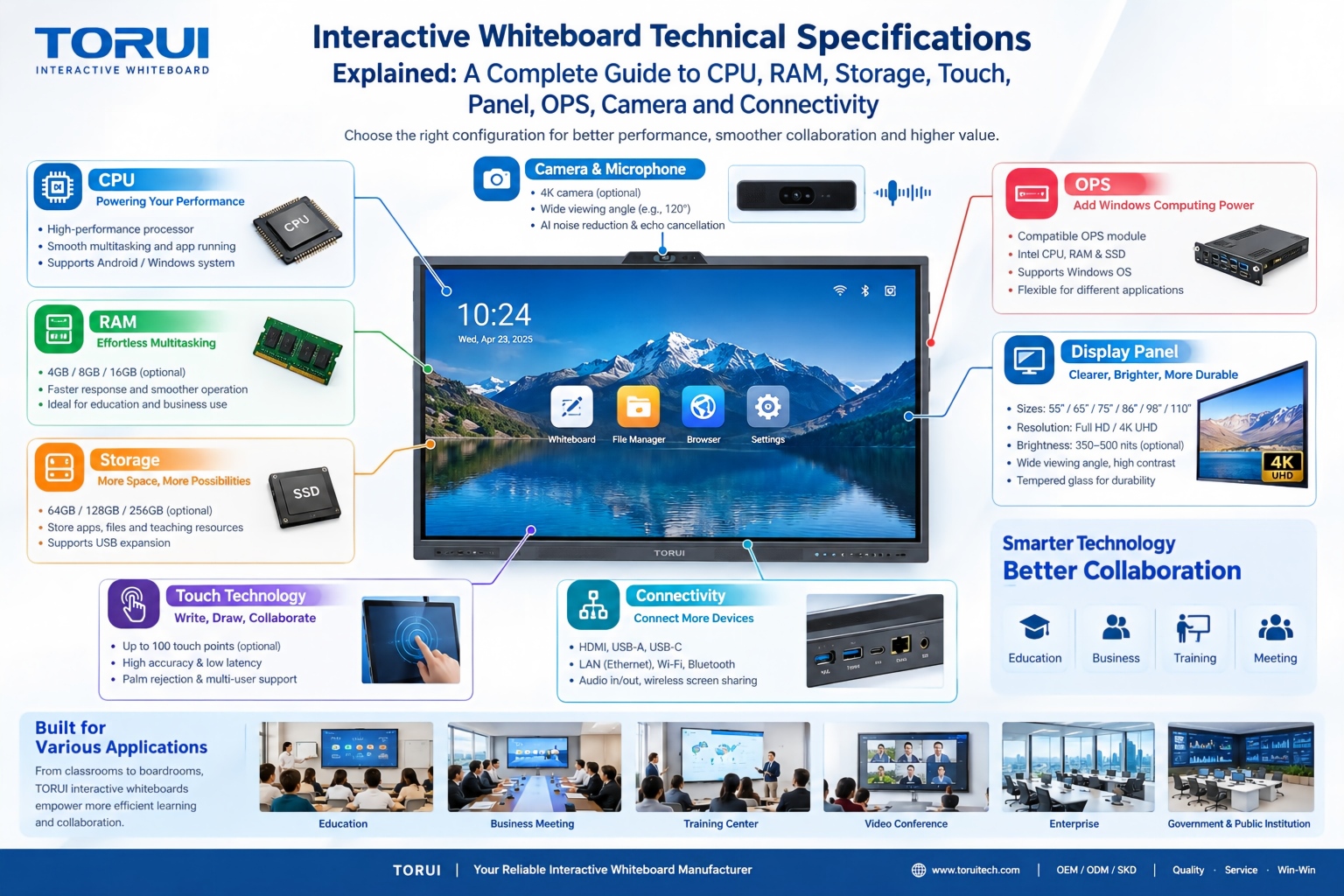
Choosing an interactive whiteboard involves more than comparing screen sizes and prices. For schools, businesses, distributors, wholesalers, and system integrators, understanding the technical specifications is essential to selecting a reliable product that meets different application requirements.
Interactive Whiteboard Technical Specifications Explained: A Complete Guide to CPU, RAM, Storage, Touch, Panel, OPS, Camera and Connectivity
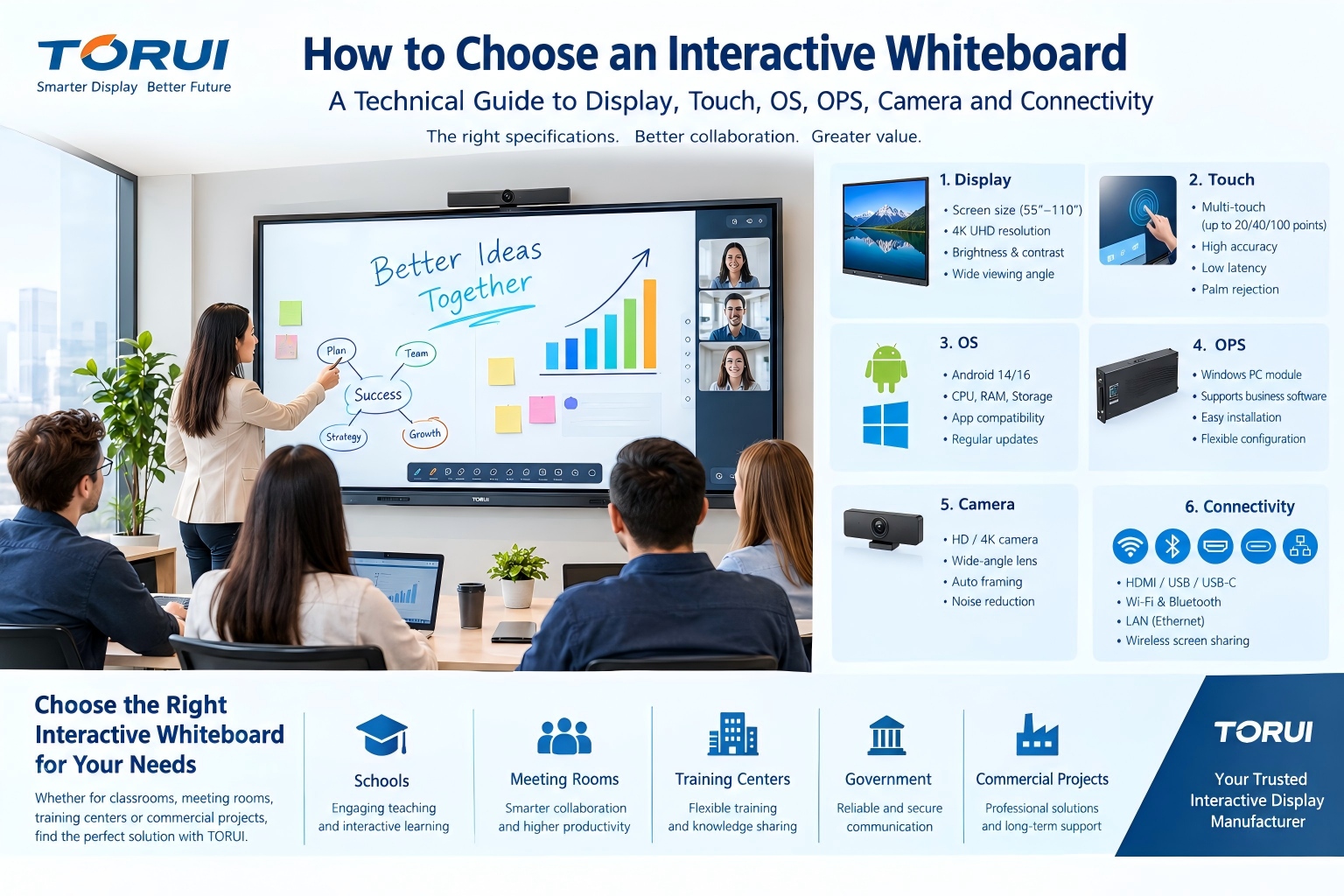
Choosing an interactive whiteboard for a school, meeting room, training center, government organization or commercial project requires more than comparing screen size and price. The most important specifications include display resolution, brightness, touch technology, operating system, processor, memory, storage, OPS compatibility, camera and microphone performance, connectivity, durability and after-sales support.
How to Choose an Interactive Whiteboard: A Technical Guide to Display, Touch, OS, OPS, Camera and Connectivity